Start with one output job
Write down whether the final app needs an enhanced face, a composed scene, slides and overlays, a phone camera, or background and audio cleanup.
The best virtual camera depends on what you want to send: a naturally enhanced webcam, a composed OBS scene, presentation sources, a phone camera, or RTX-powered cleanup. This guide compares CiCi Cam, OBS Studio, ManyCam, Camo, and NVIDIA Broadcast by workflow—not by an invented universal score. Confirm the exact operating system, hardware, destination app, and plan before installing.
Choose CiCi Cam when the goal is a naturally enhanced webcam with separate appearance controls. Choose OBS Studio for free scene composition, ManyCam for presentations and many source types, Camo for controlling a phone or dedicated camera, or NVIDIA Broadcast for AI audio, background, framing, and video cleanup on a supported RTX Windows PC. There is no honest universal winner because these products create different kinds of virtual-camera output.
Last reviewed:
OBS can send a composed scene, Camo can turn a phone or camera into a controlled feed, and CiCi Cam focuses on appearance enhancement. The same camera dropdown can hide very different workflows.
NVIDIA Broadcast requires a supported RTX Windows PC, while OBS, ManyCam, Camo, and CiCi Cam cover different desktop platforms. Version, architecture, and managed-device policy still matter.
A virtual device is useful only when the destination app can select it. Browser permissions, operating-system camera access, app restart order, resolution, and competing camera apps can all affect the result.
Choose natural appearance enhancement, scene composition, presentation sources, phone-camera control, or AI background and audio cleanup. This determines the right product category before features or price enter the decision.
Verify the vendor's current Windows, macOS, or Linux requirements, processor or GPU restrictions, free-tier limits, watermark rules, and whether installation is allowed on your computer.
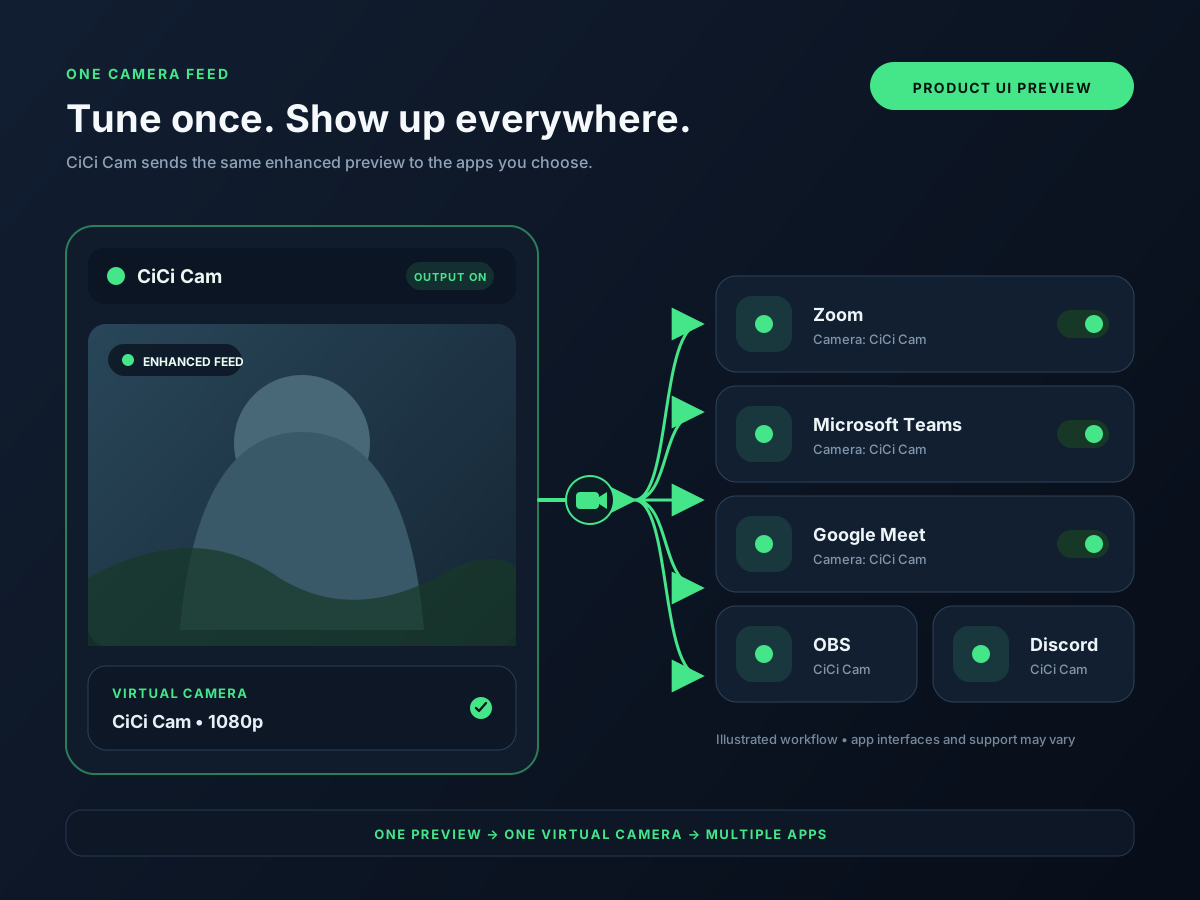
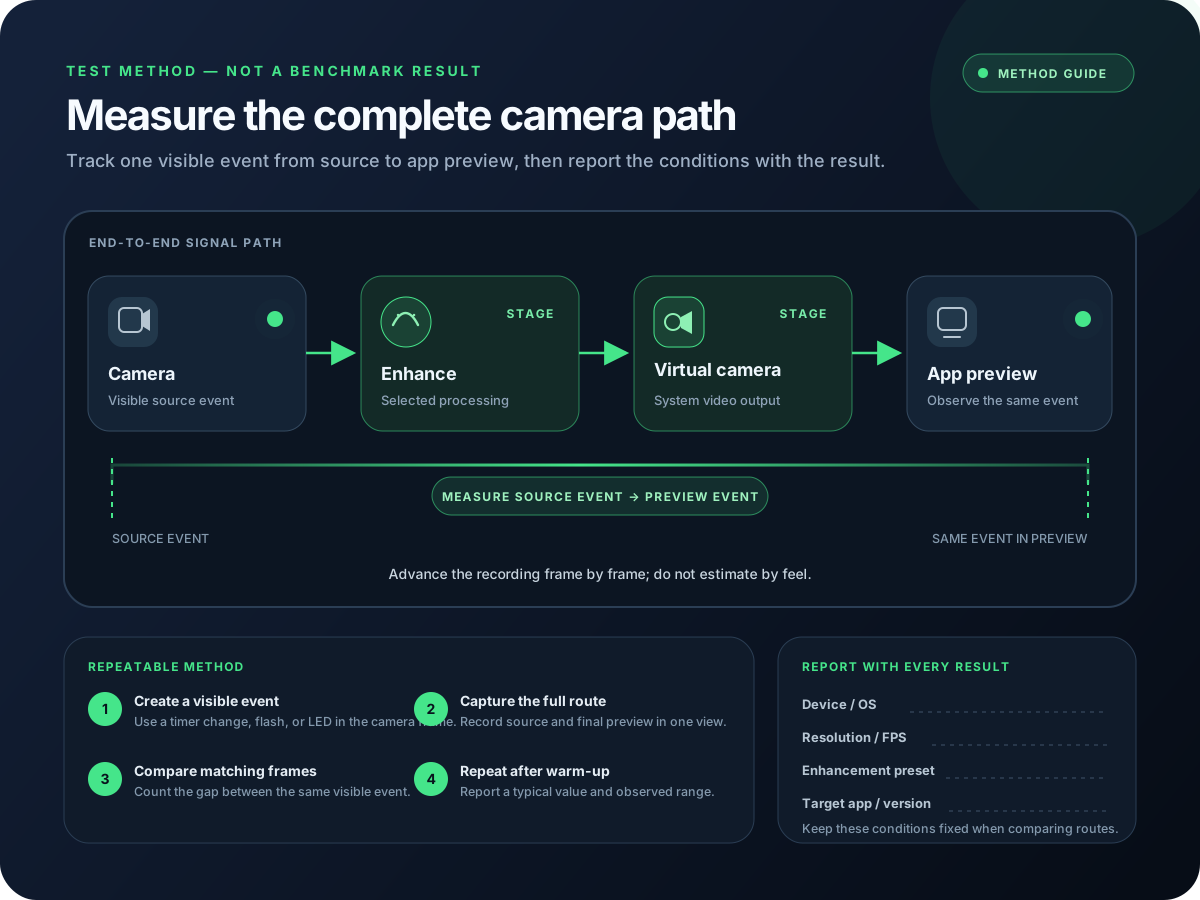
Map physical camera or phone → processing app → virtual-camera output → destination app. Confirm that your exact meeting, streaming, browser, or recording app can select the output.
Use one camera, resolution, light, and destination app. Compare setup time, image detail, color, frame stability, CPU or GPU load, restart behavior, and whether the output survives a real call or recording.
Setup visuals and product previews
Appearance enhancement, multi-scene production, phone-camera control, presentations, and RTX cleanup are different buying decisions.
Operating system, GPU, free plan, watermark, resolution, and destination-app support matter more than a long generic feature list.
Processing cost changes with camera format, effects, hardware, and the destination app. Use a repeatable call or recording instead of relying on an unsupported latency number.
New camera devices may require an app restart, operating-system permission, or administrator approval on a managed computer.
The recommendations below use current vendor documentation and workflow fit. They are not a hands-on speed ranking, and plan limits can change.
| Option | Best for | Platform and output | Main trade-off |
|---|---|---|---|
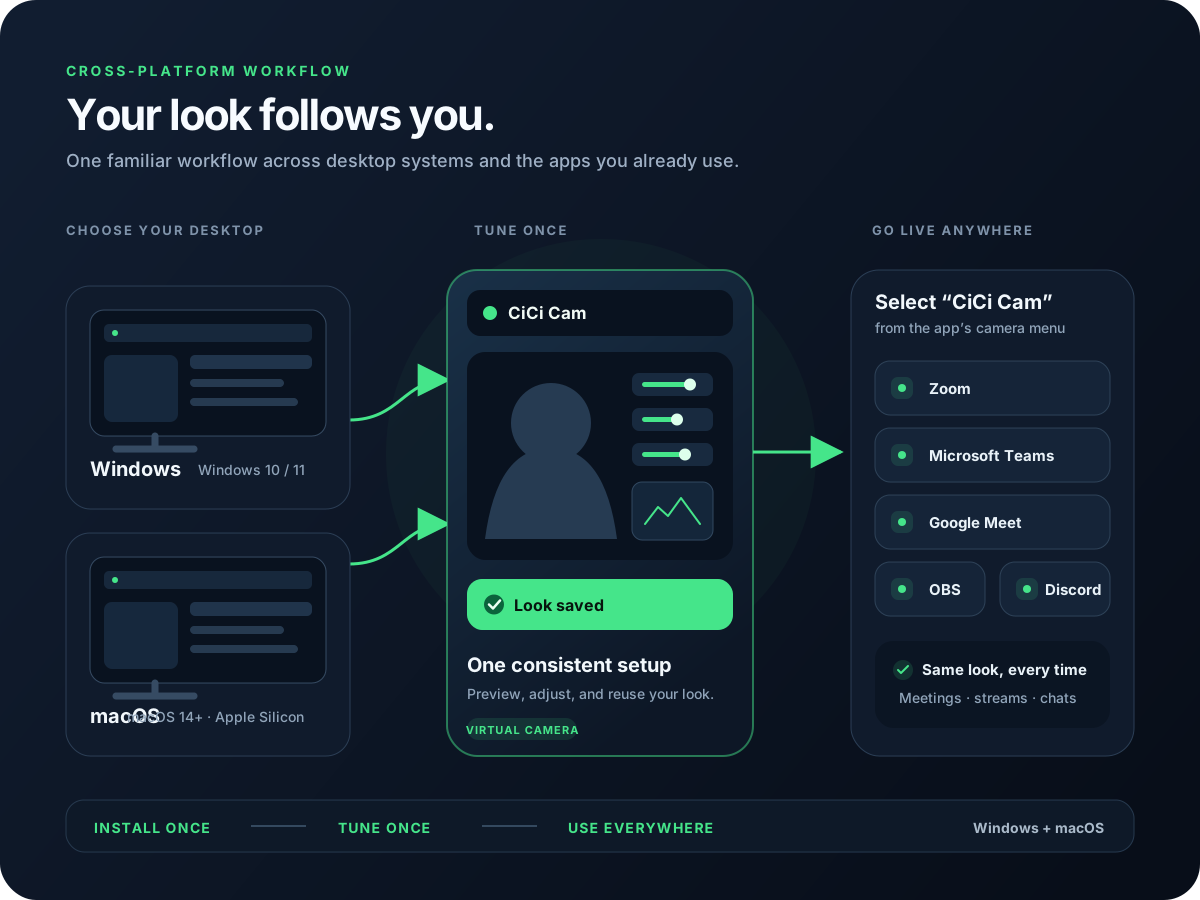
| CiCi Cam | Natural skin, makeup, face-shape, lighting, and color controls | Windows and Mac desktop app with virtual-camera output for compatible apps | Focused on appearance rather than multi-scene production, phone capture, or a large AR library |
| OBS Studio | Free scene composition, sources, overlays, and streaming workflows | Windows, macOS, and Linux; Virtual Camera sends program, preview, a scene, or a source | Powerful production interface but no native beauty or makeup workflow |
| ManyCam | Presentations, multiple sources, backgrounds, and live-video layouts | Windows and macOS virtual webcam with sources, layers, backgrounds, and RTMP tools | Capabilities and output limits vary by plan; broader interface than a focused camera enhancer |
| Camo | Using a phone, webcam, DSLR, or connected camera with manual image controls | Windows and macOS; sends Camo's processed camera feed to supported video apps | Free and Pro capabilities differ; phone workflows also depend on the mobile device and connection |
| NVIDIA Broadcast | AI noise removal, background effects, auto framing, and video cleanup | Windows virtual camera and audio devices on supported NVIDIA RTX hardware | Requires eligible RTX hardware and is not a general scene compositor or dedicated beauty tool |
Check the current vendor requirements and your exact destination app. A product supporting an operating system does not guarantee that every browser, managed device, or camera application will accept its virtual output.
A short, repeatable workflow test is more useful than comparing marketing feature counts.
Write down whether the final app needs an enhanced face, a composed scene, slides and overlays, a phone camera, or background and audio cleanup.
Verify operating system version, CPU or GPU requirements, architecture, plan restrictions, watermarking, account activation, and installation permissions on the vendor's site.
Install the tool, restart the target app, select the virtual camera, and run a representative meeting or recording at the resolution and frame rate you actually use.
Record setup time, image detail, color, frame stability, resource use, and recovery after closing and reopening both applications. Change only one setting at a time.
Missing devices and unstable video usually come from installation state, permissions, competing camera access, or an unsupported destination.
Confirm the output is enabled, quit and reopen the destination app, and check operating-system camera or extension permissions. Some apps build their camera list only when they start.
Close other camera apps, then open the processing tool first and the destination second. Test the physical camera directly to isolate which stage cannot acquire it.
Reduce resolution or frame rate, disable one effect at a time, and watch CPU or GPU use. Composition, background segmentation, and AI cleanup can have very different hardware costs.
Do not assume the virtual camera can be installed without approval. Ask IT whether desktop apps, drivers, or camera extensions are allowed and keep the physical webcam as a fallback.
Understand the input, processing, virtual output, and destination-app signal path.
Troubleshoot installation, app restart order, permissions, and device selection.
Compare appearance, AR, production, and cleanup tools when filters matter most.
See how an appearance-focused camera feed reaches compatible meeting and streaming apps.
Virtual-camera behavior, operating-system and hardware requirements, and candidate feature categories were checked against official vendor documentation. Recommendations describe workflow fit, not a controlled hands-on performance benchmark.
Install on Windows or Mac, build your preset, and use it in every video app.
Download CiCi Cam Free