Microsoft Teams Beauty Filter for Windows and Mac
Quick answer
Microsoft Teams already includes Soft focus and Adjust brightness. CiCi Cam is a separate virtual-camera app for people who want independent skin, makeup, face-shape, lighting, and color controls, plus a saved camera look they can reuse in compatible desktop apps.


Windows 10/11 · macOS 14+ on Apple Silicon · Managed devices may require IT approval
How the setup works
- 1
Install CiCi Cam on Windows or Mac
Download the desktop installer and follow your device's permission prompts. On a company-managed computer, confirm that your policy allows desktop software and virtual cameras.
- 2
Open CiCi Cam before joining Teams
Select your physical webcam as the input source and confirm the live preview works. Keep CiCi Cam running throughout the meeting so Teams can receive the processed video.
- 3
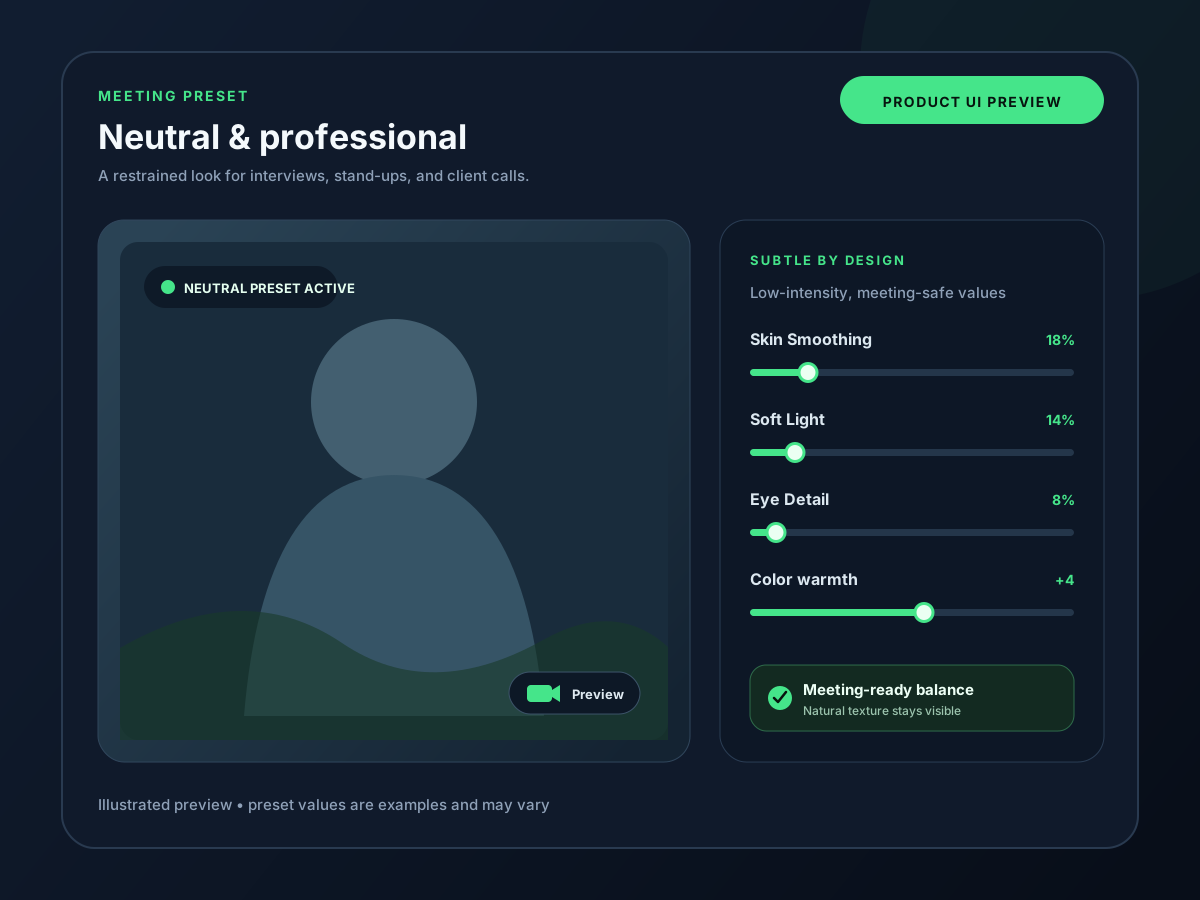
Build a neutral meeting preset
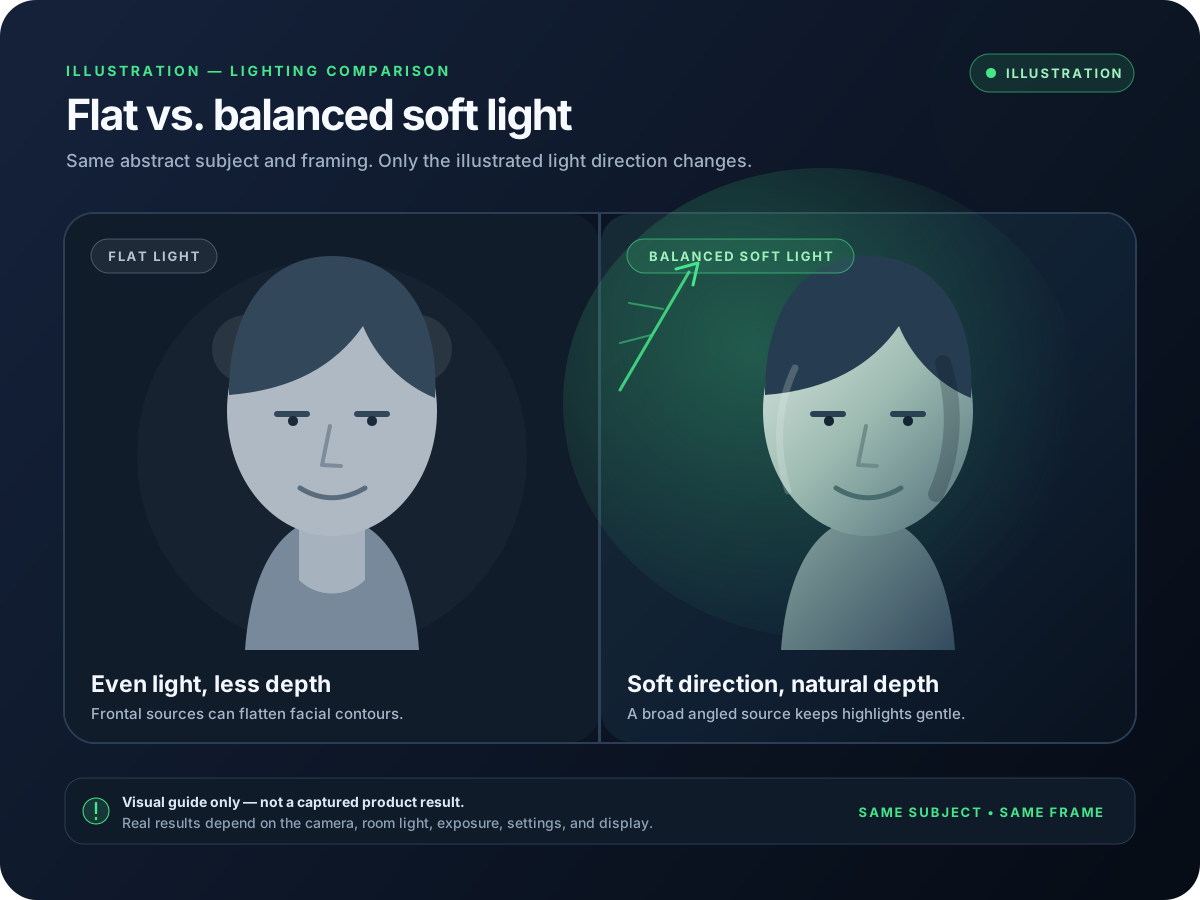
Start with light smoothing and facial soft light, then make small color or makeup adjustments only if the final preview needs them. The goal is a clear, natural picture rather than a visible effect.
- 4
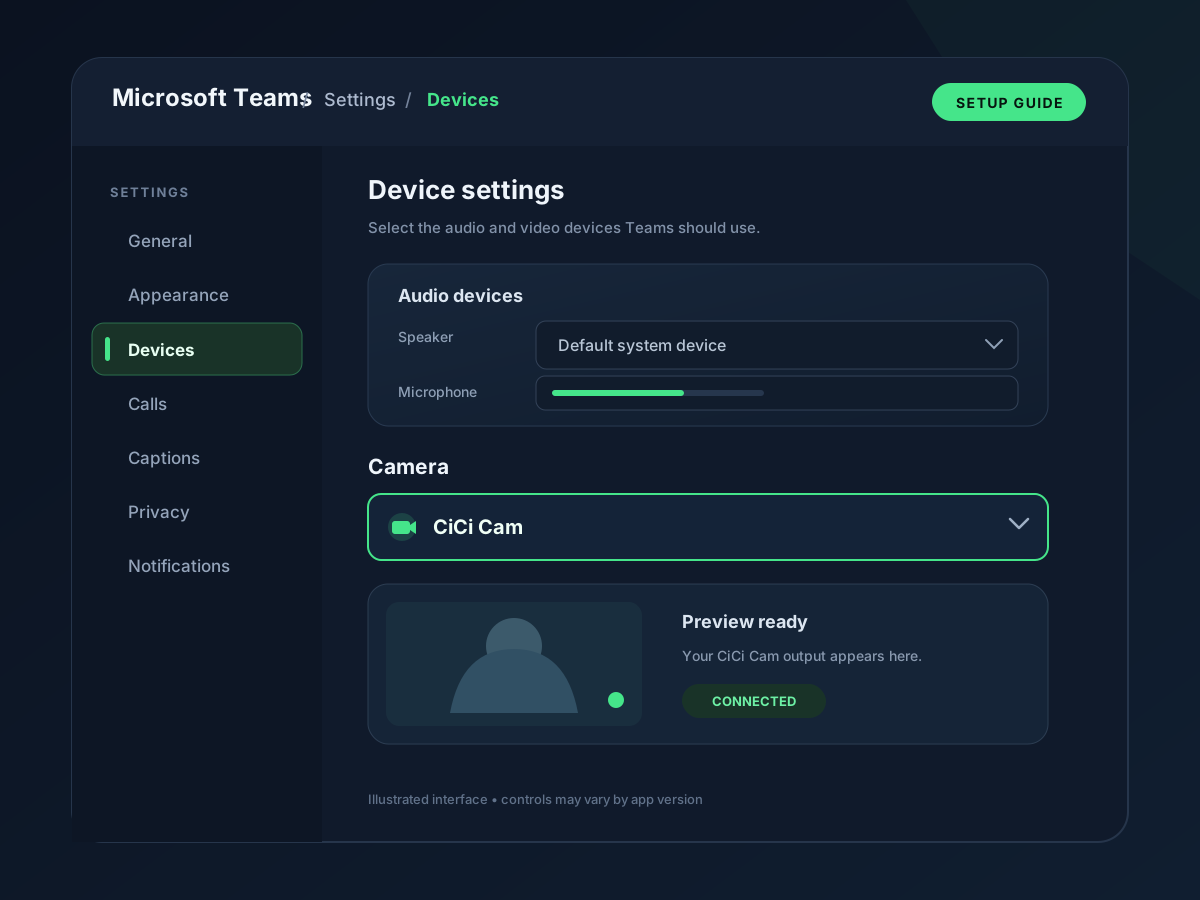
Use your CiCi Cam face filters in Teams
Open Settings and more → Settings → Devices. Under Video settings → Camera, select CiCi Cam and check the preview. Choosing the physical webcam bypasses CiCi Cam's effects. Start with Teams Soft focus and Adjust brightness off or low while checking your preset.
See it in your workflow
Setup visuals and product previews
Why the default setup falls short
Teams face filters and camera controls have different roles
Soft focus smooths your appearance and Adjust brightness helps in low light. Teams also offers video effects and filters. CiCi Cam provides separate skin, makeup, face-shape, facial-lighting, and color controls in a desktop app, then sends the result to Teams as a camera feed.
Teams settings stay inside Teams
A look configured in Teams does not follow your webcam into Zoom, Meet, OBS, or recording software. A virtual camera can provide one consistent feed to compatible desktop apps.
Work-device policies can affect installation
CiCi Cam does not install a Teams plugin, but it is still desktop software with a virtual camera. A managed Windows or Mac device may require permission or IT approval before installation.
Teams Soft focus vs CiCi Cam
Use Teams Soft focus for a quick smoothing adjustment that only needs to work inside Teams. Use CiCi Cam when you need separate appearance controls, saved presets, or the same processed camera feed in several compatible desktop apps. CiCi Cam is separate desktop software, not a Teams plugin. Start with one appearance layer and judge the result in the final Teams preview.
Last reviewed:
Review notes and primary sources
Frequently asked questions
Does Microsoft Teams have a beauty filter?
Is CiCi Cam a Microsoft Teams beauty filter download?
Do I need administrator approval to use it with Teams?
Should I combine Teams Soft focus with another appearance layer?
Why is CiCi Cam missing from the Teams camera list?
How do I touch up my appearance on Teams?
Where are Microsoft Teams video filters?
How do I change or turn off a CiCi Cam beauty filter in Teams?
Try CiCi Cam free
Install on Windows or Mac, build your preset, and use it in every video app.
Download CiCi Cam Free